Documentation.
Everything you need to know about AtlasFlux AI.
Introduction to AtlasFlux AI
AtlasFlux AI is a next‑generation platform that aggregates over 400 cutting‑edge AI models from providers like OpenAI, Anthropic, Google, Meta, DeepSeek, xAI, Qwen, and more. It unifies AI chat, file analysis, image generation, video creation, music, voice cloning, audio separation, 3D modeling, and a suite of free text tools under a single, transparent credit‑based system. For image and video generation, we've introduced a Pay‑As‑You‑Go MYR wallet for even more transparent pricing. AtlasFlux AI is operated by RAINSPEED LABS SOLUTIONS (Reg. No. 202603148143 / 003857582-W), a Malaysian-registered company.
Every user receives 30 free credits daily, with optional one‑time purchases for additional usage. AI Image and Video generations use the MYR wallet, which you top up via Stripe. The platform automatically selects the best model for each request, but also offers a Manual Mode for those who want full control. Enhanced modes include DeepSearch (live web search, up to 10 sources), Research Mode (in‑depth multi‑source analysis, up to 40+ sources), Reasoning Mode (chain‑of‑thought with auto‑opening panel), BigT (reasoning + search), and Agent Mode (autonomous task solving with code generation).
AtlasFlux AI is built for accessibility – installable as a Progressive Web App (PWA), and available in both English and Malay. Guest mode is limited (no file uploads, no modes, no chat history). All data is stored with Row Level Security, ensuring your privacy. The platform also features a vibrant community where you can share creations, follow others, and discover inspiring content. Read our Privacy Policy.
Getting Started
You can use AtlasFlux AI immediately as a guest or create a free account for persistent history, premium tools, and community access.
Guest Mode
No registration required, but limited functionality: ❌ No file uploads, ❌ No auto web search / auto reasoning / auto image generation, ❌ No access to special modes (DeepSearch, Research, Agent, etc.), ❌ No manual model selection, ❌ No chat history (0 sessions). Guest sessions are stored locally but cleared when browser data is erased. Only basic chat is available (30 daily credits). We strongly recommend signing in for full features.
Creating an Account
Click 'Sign In' at the top right and choose email (passwordless OTP), Google, or GitHub. After signing in, you instantly receive a one‑time welcome bonus of 120 credits. Your account syncs across devices, and all history is securely stored in the cloud. Signed‑in users can store up to 500 chat sessions.
Interface Overview
The left sidebar provides access to New Chat, the Tools hub, credit balance, MYR wallet, referral sharing, purchases, contact, legal, and account settings. The main area displays your active chat or tool workspace. The top bar shows credits, MYR balance, language toggle, theme switch, notifications, and your profile.
The Tools Hub
Click the Tools icon (⚙️) in the sidebar to open AtlasFlux Studio – the central launchpad for all AI creation tools. Inside you'll find: AI Image Generator, Video Generation, Music, Voice Cloning, Audio Separation, Paraphrase, Email Generator, Prompt Creator, Face Restoration, Remove Background, Upscaler, Image to 3D, and Image Tools. Each tool has its own dedicated page with custom settings and history.
AI Chat – Your Universal AI Assistant
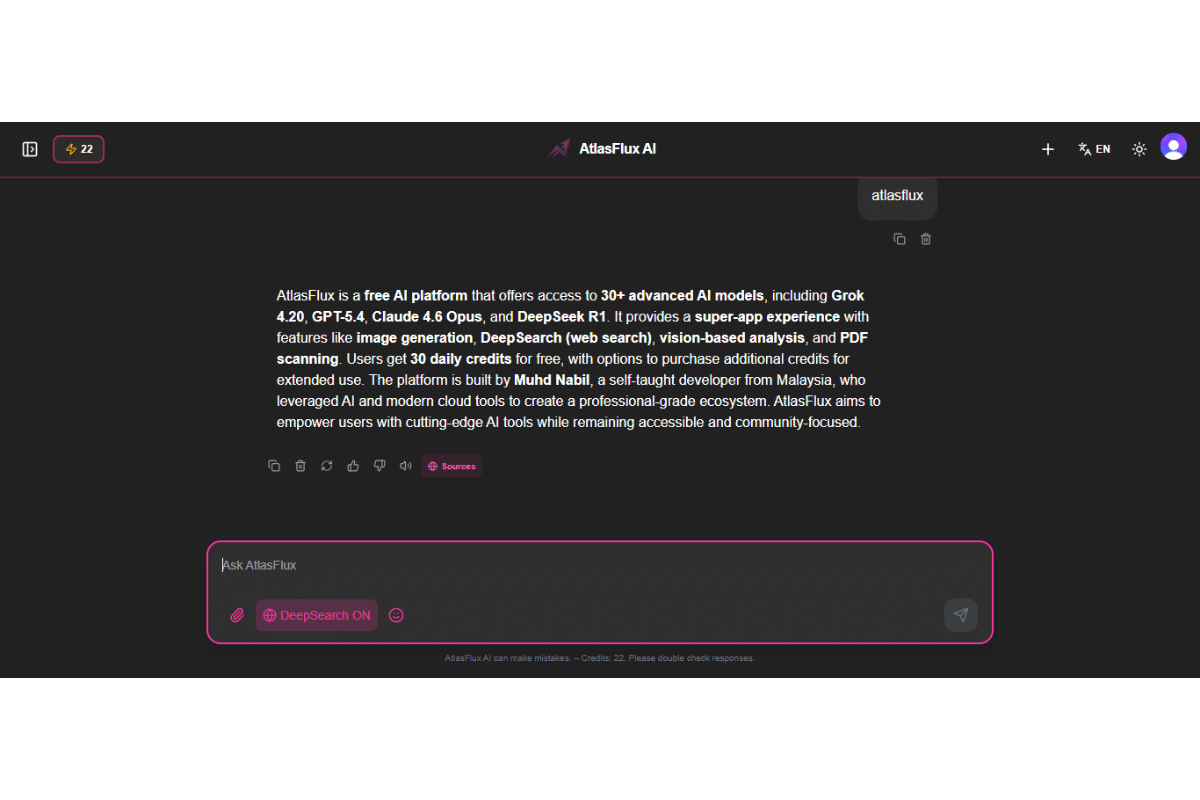
The AI Chat is the core of AtlasFlux. It supports text conversations with file attachments, automatic model selection, and a rich set of modes to tailor the AI's behaviour.
Sending Messages
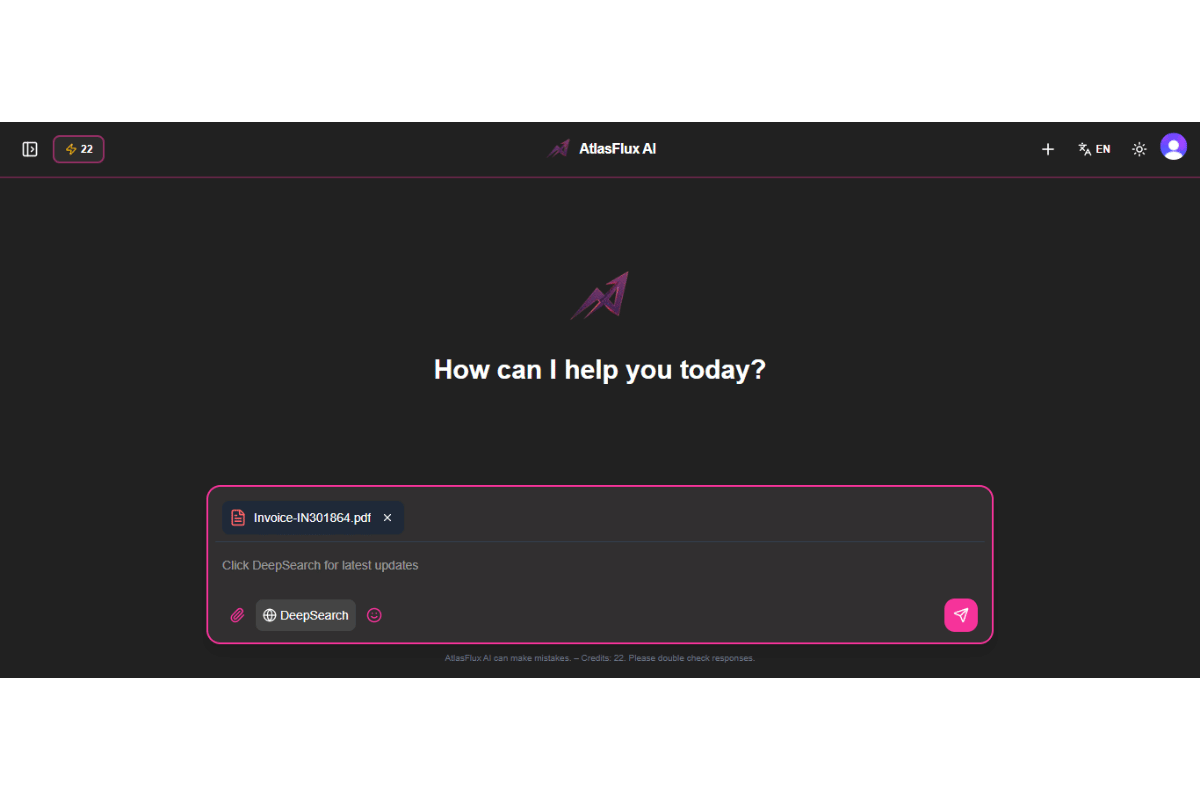
Type your message, attach files if needed, and press Enter or click Send. Use Shift+Enter for line breaks. Up to 20 files per message (max 5 images, each ≤20MB; documents ≤50MB). Images larger than 1 MB are automatically compressed.
File & Image Support
Attach files via the Plus (➕) button. Supported formats and limits per message:
- Images: PNG, JPG, WEBP – up to 20 MB each, max 5 per message.
- PDF: max 50 MB, text automatically extracted.
- DOCX/DOC: max 50 MB, text extracted via mammoth.
- XLSX/XLS: max 50 MB, data converted to CSV.
- Text/code files: TXT, JSON, JS, PY, HTML, CSS, etc. – max 10 MB.
- Binary files: download only, no preview.
- Total files per message: up to 20 (including images).
Auto vs Manual Model Selection
By default, Auto mode picks the optimal model based on your request and attached files (vision for images, file‑support for documents). Toggle to Manual mode to choose any LLM from the full catalog. In Manual mode, special modes (DeepSearch, etc.) are disabled; the selected model handles everything.
Context Window & Token Limits
Each model has a maximum context length (e.g., 128K tokens). AtlasFlux tracks cumulative tokens used in a session. When you reach 80% of the limit, a warning banner appears. At 100%, the input is disabled and you must start a new chat. This prevents errors and wasted credits.
Message Actions
Hover over any assistant message to reveal action buttons:
- 📋 Copy – copy plain text.
- 🗑️ Delete – remove message.
- 🔄 Redo – regenerate response.
- 👍 Like / 👎 Dislike – feedback.
- 🔊 Read Aloud – text‑to‑speech with selectable AI voice.
- 📚 Sources – view web pages used (DeepSearch/Research).
- 📝 Expand – full message in modal.
- ✏️ Edit – for user messages, edit and resend.
- 🚩 Flag – save to Archived for later reference.
- ▶️ Continue – if response was stopped, resume generation.
Click the square stop button (⏹) to halt generation at any time.
Chat Modes – Deep Dive
DeepSearch Mode
DeepSearch performs a live web search and scrapes the top pages (up to 10 sources) for up‑to‑date answers. Activate via the globe icon (🌐). Adds +2 credits to the base cost (total 3 credits per message). You'll see progress: 'Searching the web…' then 'Reading page X of Y'. After the response, click the source stack to open the Sources modal. If the search fails, the extra credits are refunded.
Ideal for current events, recent data, fact‑checking, and questions about live information.
Research Mode
Research Mode dives deeper, scraping up to 40+ sources with advanced search. Cost: 8 credits per message. Activated via the file‑search icon (🔍). It automatically disables DeepSearch. Delivers comprehensive analysis with extensive references. Progress is streamed live; credits are partially refunded if any part fails.
Best for academic research, market analysis, competitive intelligence, and any task requiring multiple sources.
Reasoning Mode
When enabled (🧠 icon), the AI shows its chain‑of‑thought reasoning before the final answer. Uses models with native reasoning (e.g., DeepSeek R1, Qwen3 Thinking). Cost: 2 credits per message. On desktop, the Reasoning panel opens automatically on the right while the AI thinks – you can collapse it anytime.
Why use Reasoning? - Transparency: see how the answer is built. - Better accuracy on complex logic, math, and multi‑step problems. - Educational: view the model's internal problem‑solving.
BigT Mode
BigT (🦉) combines Reasoning + DeepSearch. It provides transparent reasoning together with real‑time web context (up to 10 sources). Cost: 5 credits per message.
Auto Image Generation (Chat)
When Auto mode is active, the AI can automatically detect if your message is an image request. If so, it silently generates an image using a lightweight pipeline (flux‑schnell, flux.2‑klein‑4b) – only 1 credit per generation. Limited to 10 images per day. No mode switches required. After the image, the conversation continues normally with text.
Image Generation Status
While an image is being generated, a shimmer animation with “Generating image…” replaces the temporary placeholder, providing a polished, ChatGPT‑like experience. The Stop button remains available to cancel the generation.
Video Upload Blocked
To prevent broken previews, video files are not accepted in chat. Selecting a video will show an error toast and the file will be ignored. Supported file types are limited to images, documents, and text/code files.
Smarter Search Queries
Web search now automatically refines vague or context‑dependent questions into precise search terms using a lightweight AI classification layer. This reduces irrelevant results, especially for follow‑up questions.
ASCII Diagram Formatting
AI responses containing ASCII diagrams now strictly follow formatting rules: monospace characters, perfect alignment, maximum width 58 characters, and wrapped in ```text code blocks. This ensures mobile‑safe, correctly rendered diagrams.
Consistent Source Display
All web sources (including social platforms) are now shown uniformly across the source stack, source pills, and the full sources panel. No more hidden counts or mismatched numbers – you see exactly what the AI used.
Code, File & Source Previews
HTML/CSS/JS Code Preview
When an assistant message contains HTML, CSS, or JavaScript code, a 'Run' button appears. Clicking it opens a preview panel with a toggle between Live Preview and Code view. The live preview is safely sandboxed (navigation and form submissions are blocked). The code view shows syntax‑highlighted source.
File Preview
Attached files (PDF, images, documents) can be previewed directly in the chat by clicking on them. A sidebar opens showing the file content, with options to download or delete.
Source Preview
When DeepSearch or Research mode is used, a source summary appears below the AI response. Click it to open the Sources panel, which lists all web pages with favicons, titles, and URLs. Click any source to jump to its details.
AI Image Generation (Pay‑As‑You‑Go)
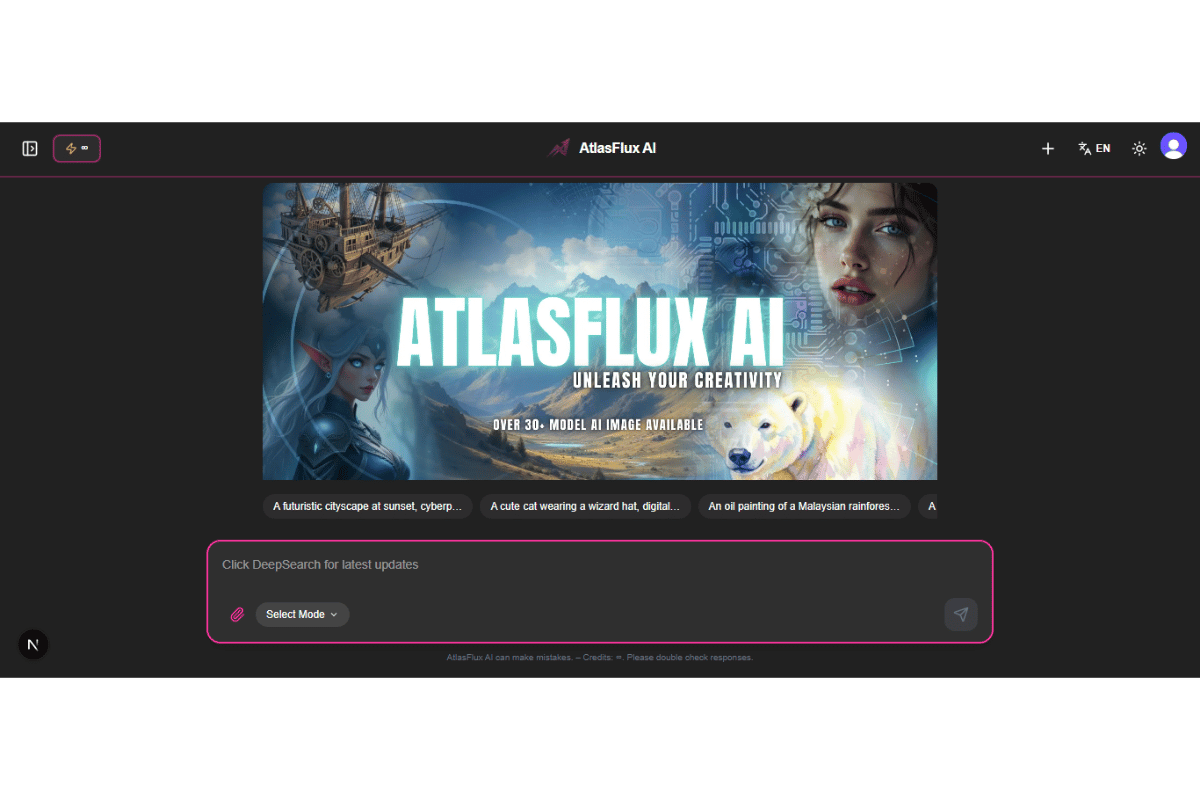
Access from Tools Hub → AI Image. Over 300 models support text‑to‑image, image‑to‑image, and multi‑reference generation. Each model displays its unique settings and MYR cost (based on provider pricing + a small markup). You pay per generation from your MYR Wallet.
All AI Image models now use MYR Pay‑As‑You‑Go (approx. RM0.03–RM0.20 per generation depending on model and settings).
Choosing a Model
Select a model from the dropdown. The settings panel adapts dynamically – showing only supported options such as resolution, aspect ratio, safety tolerance, seed, style, etc. The estimated MYR cost updates in real‑time as you change settings.
Image‑to‑Image & Reference Images
For models that support img2img, you can upload one or more reference images. The AI will follow your prompt and the provided visuals. Some models support up to 14 reference images (e.g., Nano Banana Pro). If a model does not support image input, the upload area is disabled.
Advanced Settings
Depending on the model, you can tweak aspect ratio, resolution, safety tolerance, seed, style, negative prompt, and more. All changes update the MYR cost instantly.
Image History
All generated images are saved to your AI Image History. You can preview, download, share, pin (to keep beyond 7 days), or delete. A retention banner reminds you of the 7‑day auto‑cleanup for unpinned items.
Community Auto‑Share
If you enable Auto‑Share in Preferences, every generated image is automatically posted to the Community Feed, including the prompt, model, settings, and reference images. You can disable this at any time.
Video Generation (Pay‑As‑You‑Go)

Access from Tools Hub → Video Gen. Create videos from text, images, or existing clips. Models include Kling, Veo, Seedance, Hailuo, PixVerse, Wan, and more. Each generation is charged in MYR from your wallet.
All video models charge per second/configuration. Costs range from approximately RM0.01 to RM5+ depending on resolution, duration, audio, and model.
Choosing a Model
The dropdown lists all available video models. The form only shows fields supported by the selected model, such as resolution, duration, aspect ratio, audio, seed, fps, motion strength, expression scale, etc. The MYR cost updates live.
Settings & Cost
Configure resolution, duration, aspect ratio, audio generation, negative prompt, CFG scale, and more. The estimated MYR cost updates in real‑time. A confirmation modal appears before generation, showing a summary of the request and the exact MYR cost.
Input Types
Depending on the model, you can provide:
- Text prompt only (T2V)
- Reference image(s) for image‑to‑video
- Input video for extension/editing
- Audio file for lip‑sync or audio‑driven animation
- Reference images for style/character consistency
Video History
Generated videos are saved to your Video History. You can play, download, share, pin (kept indefinitely), or delete. A retention notice reminds you of the 7‑day auto‑cleanup for unpinned items.
All AI Tools – Complete Reference
Every tool has its own dedicated page and history. Text‑based tools are free. Audio, image, and video tools consume credits or MYR as listed.
| Tool | Cost | Description |
|---|---|---|
| AI Image Generator | MYR (from RM0.03) | Over 300 models. Pay per generation from your MYR Wallet. Select model, configure settings, and see live MYR cost. |
| Video Generation | MYR (from RM0.01) | Create videos from text/images/clips. Cost depends on model, resolution, duration, and audio. Pay as you go. |
| Music Generator | Lyrics: Free | Audio: 30‑50 credits | Create original songs with AI. Choose Lyria or MiniMax models. Generate lyrics for free, then turn them into audio. Edit lyrics before finalising. 2 free audio trials for MiniMax 1.5. History: Music Album. |
| Voice Cloning | 15 credits | Clone any voice by uploading a short sample (5‑10 sec). Supports 15 languages. Download the generated speech. History: Voice Cloning History. |
| Audio Separation | 20 credits | Separate an audio file into stems (vocals, drums, bass, other). Adjustable model, overlap, and MP3 settings. History: Audio Separation History. |
| Paraphrase | Free | Rewrite text in different styles (Standard, Formal, Casual, Creative). Adjust creativity level. History: Paraphrase History. |
| Email Generator | Free | Create professional email drafts. Choose template, tone, length, creativity. History: Email History. |
| Prompt Creator | Free | Craft detailed image/video prompts. Configure type, style, lighting, mood, composition. Output as text or JSON. History: Prompt History. |
| Face Restoration | 5 credits | Restore old/damaged faces using GFPGAN. Choose scale (2x/4x) and model version. Before‑after comparison. History: Face Restoration History. |
| Remove Background | 10 credits | Instantly remove image backgrounds (BRIA RMGB 2.0). Output: transparent PNG. Before‑after comparison. History: Remove BG History. |
| Upscaler | 10 credits | Enhance resolution up to 4x with Real‑ESRGAN. Optional face enhancement for portraits. Before‑after slider. History: Upscaler History. |
| Image to 3D | 70 credits | Generate 3D model (GLB) from image/text. Adjustable face count, PBR materials. Interactive 3D viewer. History: Image to 3D History. |
| Image Tools | 5‑15 credits | Poster Maker (RAD Posters, 5 cr) and Remove Object (Flux Fill Pro, 15 cr). Upload mask for removal. History: Image Tools History. |
File Uploads
Supported File Types
- Images: PNG, JPG, WEBP – up to 20 MB each, max 5 per message.
- PDF: max 50 MB, text automatically extracted.
- DOCX/DOC: max 50 MB, text extracted via mammoth.
- XLSX/XLS: max 50 MB, data converted to CSV.
- Text/code files: TXT, JSON, JS, PY, HTML, CSS, etc. – max 10 MB.
- Binary files: download only, no preview.
- Total files per message: up to 20 (including images).
Size & Quantity
- No daily limits – only per‑message limits.
- Images: up to 5 per message, 20 MB each.
- Documents: up to 50 MB.
- Text/code: up to 10 MB.
How to Attach Files
- Click the Plus (➕) button in the chat input area.
- Choose 'Upload Image' or 'Upload Document'.
- Select files from your device.
- Click the ✕ on any preview to remove it before sending.
Model Catalog & Capabilities
AtlasFlux AI now includes over 300 models from OpenRouter (chat), Replicate (image/video), and WaveSpeed (optimised speed). Below is an overview of popular categories. For the full list, visit the chat model selector.
Chat Models (OpenRouter)
GPT‑5.5 Pro / GPT‑5.4 Pro
Complex reasoning, long‑form writing, 1M context, token‑based pricing.
Claude Opus 4.8 / 4.7
Advanced multimodal analysis, nuanced instructions, safety‑critical applications.
Gemini 3.1 Pro
Search integration, code understanding, broad knowledge.
DeepSeek R1 / V3.2
Reasoning‑exposed models, chain‑of‑thought, economical.
Grok 4.20 / 4.20 Multi‑Agent
Real‑time data (X integration), agentic tool calling.
Qwen 3 Max / Qwen 3.5
Vision‑capable, multilingual, free preview available.
Mistral Large
Privacy‑focused, strong European language performance.
Perplexity Sonar Pro Search
Integrated search engine, perfect for fact‑checking.
Image Models (Replicate & WaveSpeed)
FLUX.2 Pro / Max
Photorealistic generation, aspect ratio, img2img.
Imagen 4 / Ultra
Google’s flagship, exceptional prompt adherence, up to 4K.
Seedream 4.5
ByteDance model with multi‑step reasoning, sequential generation.
Nano Banana Pro
Up to 14 reference images, multiple aspect ratios.
Ideogram V3 / Recraft V4
Graphic design, text rendering, branding.
Grok Imagine
High‑realism, text‑to‑image and editing.
Proteus V0.3 / Lucid Origin
Community‑tuned photorealism and anime.
Video Models
Kling 2.6 / V3 Omni
Cinematic quality, 4K, audio support.
Veo 3.1 / Fast
Google’s premium model, JSON prompt support.
Seedance 2.0 / 1 Pro
Multi‑image reference, complex motion.
Grok Imagine Video
xAI’s text‑to‑video with native audio.
PixVerse V4 / Transition
Fast social media content, creative transitions.
Credit System – How It Works
Daily Credits
30 free credits every day, reset at midnight Malaysia Time (UTC+8). Unused daily credits do not roll over.
Bonus Credits
Never expire. Come from: welcome bonus (120 credits), referrals (50/30), purchased packs, and promotions.
- Welcome bonus: 120 credits on first sign‑in.
- Referral: 50 credits for referrer, 30 for referred.
- Purchased credit packs.
- Special promotions.
Credits are consumed in this order: daily credits first, then bonus credits.
Token‑Based Pricing
Some models (e.g., GPT‑5.5 Pro, Claude Opus 4.8) use token‑based pricing instead of a flat rate. The total cost is estimated upfront based on your input tokens and an assumed output length. You'll see a 'Token Hold' amount before sending. The final charge is calculated by the server using actual usage. Any difference between the estimated hold and the actual cost is automatically refunded.
Automatic Refunds
If all models fail to respond, or if DeepSearch/Research fails, the full credit amount is refunded. For token‑based models, any difference between estimated and actual usage is refunded automatically. Check your Credit Logs for verification.
MYR Wallet – Pay‑As‑You‑Go for Images & Videos
AI Image and Video generation now use a dedicated MYR wallet. You top up your wallet with Malaysian Ringgit (RM) via Stripe, and each generation deducts the exact cost from your balance. This provides full transparency – you only pay for what you use, at rates directly tied to provider costs.
How to Top Up
Visit your Account → Billing section. Choose a preset amount (RM5, RM10, RM20, RM50, RM100) or enter a custom amount (min RM5, max RM500). You must select the Stripe payment method, then click Buy Now. You'll be redirected to Stripe's secure checkout. After payment, your balance updates instantly.

Using MYR for Image/Video
In the AI Image or Video tool, select a model and adjust settings. The estimated cost in MYR is shown. When you click Generate, the amount is deducted from your wallet. If the generation fails, the full amount is refunded automatically.
Transaction History
All MYR top‑ups, image/video usage, and refunds are recorded in your Billing page under 'Top‑up History' and 'Usage History'. You can also request a resend of your invoice for any top‑up.
Key Advantages
- Transparent pricing – see the exact RM cost before generation.
- No wasted credits – only pay for what you use.
- Instant top‑ups – use the MYR wallet anytime.
- Safe and secure – all payments processed by Stripe.
Purchases & Credit Packs
All purchases are one‑time payments processed securely by Stripe. Credits never expire. For image/video, please use the MYR Pay‑As‑You‑Go wallet instead of credit packs.
- Starter Pack: 350 credits – RM5.99
- Professional Pack: 800 credits – RM10.99
- Ultimate Pack: 3,500 credits – RM39.99
Purchase Process
- Go to the Purchase page from the sidebar.
- Select a pack and click 'Buy Now'.
- Complete payment on Stripe's secure checkout.
- You'll be redirected and a confirmation modal appears.
- Credits are added instantly.
Non‑refundable once delivered. If a technical error prevents delivery, contact support within 15 minutes.
Referral Program
Share your unique link from the Share button in the sidebar. When someone signs up:
- You get 50 bonus credits.
- They get 30 bonus credits (on top of 120 welcome).
Account & Profile
Access your account page via the sidebar. There you can:
- Edit your username and avatar.
- View credit balances (daily, bonus, image bundle).
- See purchase history and total images generated.
- Rate your experience (1‑5 stars).
- Manage your MYR wallet – top up, view balance, see transaction history.
Preferences
Customize your experience in the Preferences tab.
Language: toggle between English and Bahasa Melayu.
Appearance: choose Light, Dark, or System theme.
Notifications: toggle to enable/disable push notifications (bell icon).
Memory: enable/disable automatic memory. When ON, the AI learns facts about you from conversations and uses them in future chats.
AI Voice: select a text‑to‑speech voice from 43 options.
Custom Instructions: write a paragraph describing your preferences (e.g., 'I prefer concise answers'). This is sent as a system prompt to every chat.
Auto‑Share to Community: when enabled, your generated images/videos are automatically shared to the community feed.
Data Export & Import
AtlasFlux AI provides full data portability. You can export your entire account data or just your chat history, and even import chat history from another account using a secure key system.
Full Data Export
Request a complete archive of all your data: profiles, chat sessions, messages, generated images, videos, music, voice clones, and all tool histories. The export is compiled into a JSON file and a download link is sent to your email. The link expires after 48 hours.
Chat Export (Atlas Key)
Export only your chat history (sessions & messages). When you initiate a chat export, a unique Atlas Key is generated. This key follows the format ATLASFLUX-XXXX-XXXX-XXXX and is shown to you once. A download link is also sent to your email as a backup. The key is tied to a specific export file and can only be used once. It expires after 48 hours. You cannot import the chat back into the same account that created the key.
Import Chat (Using Atlas Key)
To import a chat export into your account, you need two things: the JSON file from the original export, and the Atlas Key that was generated with that export. The system verifies the key (must be unused, unexpired, and from a different account), then validates the file hash. Once validated, all chat sessions and messages are imported into your account. After a successful import, the key is marked as used and cannot be reused.
- The JSON file from the original export.
- The Atlas Key that was generated with that export.
To import a chat export into your account, you need two things: the JSON file from the original export, and the Atlas Key that was generated with that export. The system verifies the key (must be unused, unexpired, and from a different account), then validates the file hash. Once validated, all chat sessions and messages are imported into your account. After a successful import, the key is marked as used and cannot be reused.
Export Key History
You can view all your previously generated Atlas Keys in the Export Key History panel. Keys are displayed in a masked format (e.g., ATLASFLUX-****-****-****) for security. The history shows whether a key is active or already used, when it was created, and (if used) when it was used and by whom.
Import AI Memory
You can import conversation data from other platforms (ChatGPT, Gemini, Claude) to teach the AI about you. Upload a JSON or TXT file containing your conversation history. The system uses an AI model to automatically extract factual statements about you and adds them to your memory, which the AI will use in future chats.
Delete All Chats & Delete Account
You have the option to permanently delete all your chat sessions at once, or to request full account deletion. Account deletion is a 30‑day process: after requesting, your account is suspended and a confirmation email is sent. You can cancel the deletion by contacting support within those 30 days.
Security Settings
Manage your account security in the Security tab.
Multi‑Factor Authentication (MFA): Enable TOTP‑based MFA for additional login protection.
Passkeys: Add a passkey for biometric login (fingerprint, face).
Change Password: Update your password by entering the current one and a new one (min 8 characters).
Active Sessions: View and revoke devices where you're logged in. 'Sign Out Everywhere' logs out all devices at once.
Email/Phone Verification: Verify your email or add a phone number for recovery.
Archived Messages (Flag)
Flag messages in chat to save them to Archived. You can view, edit (title and content), copy, share the message link, or delete (remove flag) them later.
Artifacts – Your Code Library
When you use Agent Mode (or previously Coding Mode), generated code files are automatically saved to Artifacts. Rename, download, or copy the URL of any file. Accessible from Account → Artifacts.
Community Forum

Welcome to the AtlasFlux AI community – a space where you can share your AI creations, discover what others are building, and interact with fellow creators. The community is currently in beta, and we are rapidly adding new features.
Feed & Discovery
Your main entry point is the Community Feed. Every auto‑shared AI generation appears in a visual grid. Sort by Popular, Newest, or All Time Favourites.
Auto‑Sharing Your Creations
Enable Auto‑Share in Preferences. Each generation includes the prompt, model, settings, and reference images as clickable thumbnails.
Recreate Button
Every community post features a Recreate button. Clicking it opens the corresponding AI tool (AI Image or Video Generation) with all settings, prompt, and reference images pre‑filled. Anyone can recreate any post.
Content Moderation (Take Down)
A team of moderators can take down posts that violate community guidelines. The post owner receives an email and a system notification. The post is blurred and marked as taken down, but the owner can still view it and submit an appeal.
User Profile
Every user has a public profile showing their bio, country, links, followers, and creations. Your own profile includes a Private tab for taken‑down or manually privatised posts.
Explore Page & Bento Grid
The Explore page offers a dense, zero‑gap bento grid with a powerful live search bar. Search for users or posts by name, and filter by content type.
Saved Posts
Bookmark any post by clicking the bookmark icon. Access all saved posts at /community/saved. Unsave directly from the grid.
Following & Followers
Follow other creators to build your network. The follower/following count opens a modal listing all users, with one‑click follow/unfollow.
Notifications
All community interactions generate notifications (likes, comments, follows, takedowns) shown in the bell icon. System notifications use the official AtlasFlux AI avatar with a verified badge.
Migrating Old Content
If you used the image/video tools before the community launched, a migration script can backfill your history into your public profile (respects your Auto‑Share setting).
PWA Installation
AtlasFlux AI is a Progressive Web App. Install for quick access:
- Desktop: click the install icon in the address bar.
- iOS: Share → 'Add to Home Screen'.
- Android: Menu → 'Install app'.
Support Ticket System
We have replaced the old contact form with a fully‑fledged support ticket system. You can now submit, track, and reply to support tickets directly from the Contact page.
Ticket Dashboard
Navigate to /contact to access your personal ticket dashboard. There you will see any active ticket (pending or in‑progress) at the top, followed by a list of all your previous tickets. Click any ticket to expand its details or view the full conversation.
Submitting a New Ticket
If you have no active ticket, the dashboard will display a 'New Ticket' button. Click it to open the submission form. Fill in the subject, category, priority, and detailed message, then submit. You can only have one active (pending or in‑progress) ticket at a time to ensure focused support.
Ticket Statuses
Each ticket goes through a clear workflow:
- 🔵 Pending – Your ticket has been received and is waiting for an administrator to review.
- 🟡 In Progress – An administrator has started investigating your issue.
- 🟢 Completed – The issue has been resolved. You will receive an email with the administrator's reply.
- ⚫ Expired – If a ticket remains inactive for 30 days, it will be automatically marked as expired. Completed tickets can also be manually expired.
Replying to Tickets
While your ticket is open (pending or in‑progress), you can add additional information or ask further questions directly from the ticket detail page. You and the admin can exchange messages until the ticket is marked as completed.
Email Notifications
You will receive an automatic confirmation email when you submit a ticket. Additionally, you'll be notified by email whenever the status of your ticket changes (e.g., from pending to in‑progress) or when an administrator replies. The email includes a direct link to your ticket.
Administrator Tools
Platform administrators have access to a dedicated admin panel at /admin/tickets. From there, they can view all user tickets, change statuses, reply with solutions, add internal notes, and mark tickets as completed or expired. This ensures efficient handling of all support requests.
Legal Policies
Full policies at /legal.
- AI Disclaimer
- Terms & Conditions
- Privacy Policy
- Refund Policy
- Ban Policy
- Image Generation Policy
Updates & Changelog
Chronological log of features and fixes at /updates.
Frequently Asked Questions
How do I get more credits?
Daily reset (30 free), referrals (50/30), or purchase credit packs.
How do I get MYR for image/video?
Go to Account → Billing, select an amount, and pay via Stripe. Your MYR wallet is debited per generation.
Can I use without an account?
Yes, guest mode (limited: no file uploads, no modes, no history). Most advanced tools require login.
Why did my image fail?
Temporary provider issue. Credits/MYR refunded. Try a different model.
How to delete my account?
Contact via the support ticket system (no longer email).
Does it support Malay?
Yes, interface and AI responses available in Malay.
What data is collected?
Only essentials (email, usage logs, generated content). See Privacy Policy.
How does the ban system work?
Three‑strike: warning, final warning, 30‑day suspension. Severe offenses → permanent ban.
Are my messages private?
Yes. Row Level Security ensures only you can access your data.
Daily vs bonus credits?
Daily resets, bonus never expires. Uses daily first.
How to install PWA?
Desktop: address bar icon. Mobile: 'Add to Home Screen'.
How often are models updated?
Regularly – check /updates.
Can I get a refund for MYR top‑up?
Non‑refundable once delivered. Contact support within 15 min if technical error.
Why is my MYR balance not updating?
Refresh the page. For top‑ups, Stripe webhook must be processed. If issue persists, contact support.
Image size/format limits?
PNG/JPG/WEBP ≤20MB, auto‑compress >1MB. Up to 5 per chat message (total 20 files per message).
Manual vs Auto mode?
Auto picks the best model; Manual lets you choose from the catalog.
File upload limits?
No daily limits, only per‑message limits: up to 20 files total, images ≤5, each ≤20MB; documents ≤50MB.
How to share generated content?
Use the Share button to copy URL, or download and share manually.
What is token‑based pricing?
For select chat models, cost is calculated per token with an upfront hold and automatic refund of overestimation.
How does Agent Mode work?
Agent Mode autonomously plans and executes tasks (search, read, write code) with a live timeline. Costs 100 credits per message.
Can I cancel a DeepSearch?
Yes, click the Stop button. Unused credits are refunded if search fails.
How many images can I upload to chat?
Up to 5 images per message (part of 20 total files), each max 20 MB.
How do I check my ticket status?
Visit /contact/tickets to see all your tickets. Click on any ticket for full details and replies.
Can I have multiple open tickets?
No, only one active ticket is allowed at a time. This ensures focused support.
How will I know when my ticket is updated?
You'll receive an email notification for any status change or admin reply.
What is the Auto Web Search toggle?
When ON, the AI automatically detects if your question needs live web search (cost 1 credit) and performs a standard search, not DeepSearch.
What is Auto Reasoning?
A free toggle that adds chain‑of‑thought reasoning to responses without the 2‑credit fee of the paid Reasoning Mode.
What is Skills Library?
A collection of markdown skill files you can enable in your account to give the AI persistent instructions for specific tasks.
Troubleshooting
- Insufficient credits – wait for daily reset, use bonus credits, or purchase a pack.
- Insufficient MYR balance – top up your wallet in Account → Billing.
- DeepSearch timeout – some sites block scrapers; try again later.
- Blank response – credits refunded; refresh and retry.
- Image not in history – wait a few seconds or refresh the page.
- Cannot sign in – check internet/pop‑up blockers; try a different browser.
- Model not supporting image input – the AI Image tool disables the upload area for incompatible models.
- Video generation takes too long – reduce duration or resolution. Try a faster model.
- PWA not installing – ensure you are on a secure connection (HTTPS).
- Artifacts not saving – ensure Agent Mode was activated when the code was generated.
Known Limitations
- Chat sessions: max 500 per signed‑in user (oldest unpinned auto‑deleted). Guests: 0 sessions (no history).
- Generated media: auto‑removed after 7 days unless pinned.
- Video generation: 2‑5 min processing; model‑specific limits on duration/resolution.
- 3D models: large models may not preview; download recommended.
- DeepSearch/Research may be blocked by some websites.
- Manual Mode disables all special modes; the selected model must support the attached files.
- Auto Image generation: limited to 10 images per day.
Pricing & Credit Costs
Model Pricing
Complete list of all AI models available on AtlasFlux, including credits cost and supported features. Prices are subject to change; check back for updates.
Documentation last updated: June 2026.